

Overview
Theming in CometChat allows you to create visually consistent and customizable user interfaces that align with your application’s branding. TheCometChatTheme.DayNight style is built on Theme.MaterialComponents.DayNight.NoActionBar and serves as the global theme applied across all CometChat components.
With theming, you can:
- Seamlessly integrate light and dark modes
- Define custom colors and typography
- Apply component-specific styles
- Maintain consistent branding across your app
Quick Start
Step 1: Set Up Your Theme
Create or update yourthemes.xml file and extend CometChatTheme.DayNight:
themes.xml
Step 2: Apply Theme to Your Application
In yourAndroidManifest.xml, set the theme for your application:
AndroidManifest.xml
Step 3: (Optional) Apply Theme to Specific Activities
If you need different theming for specific activities:AndroidManifest.xml
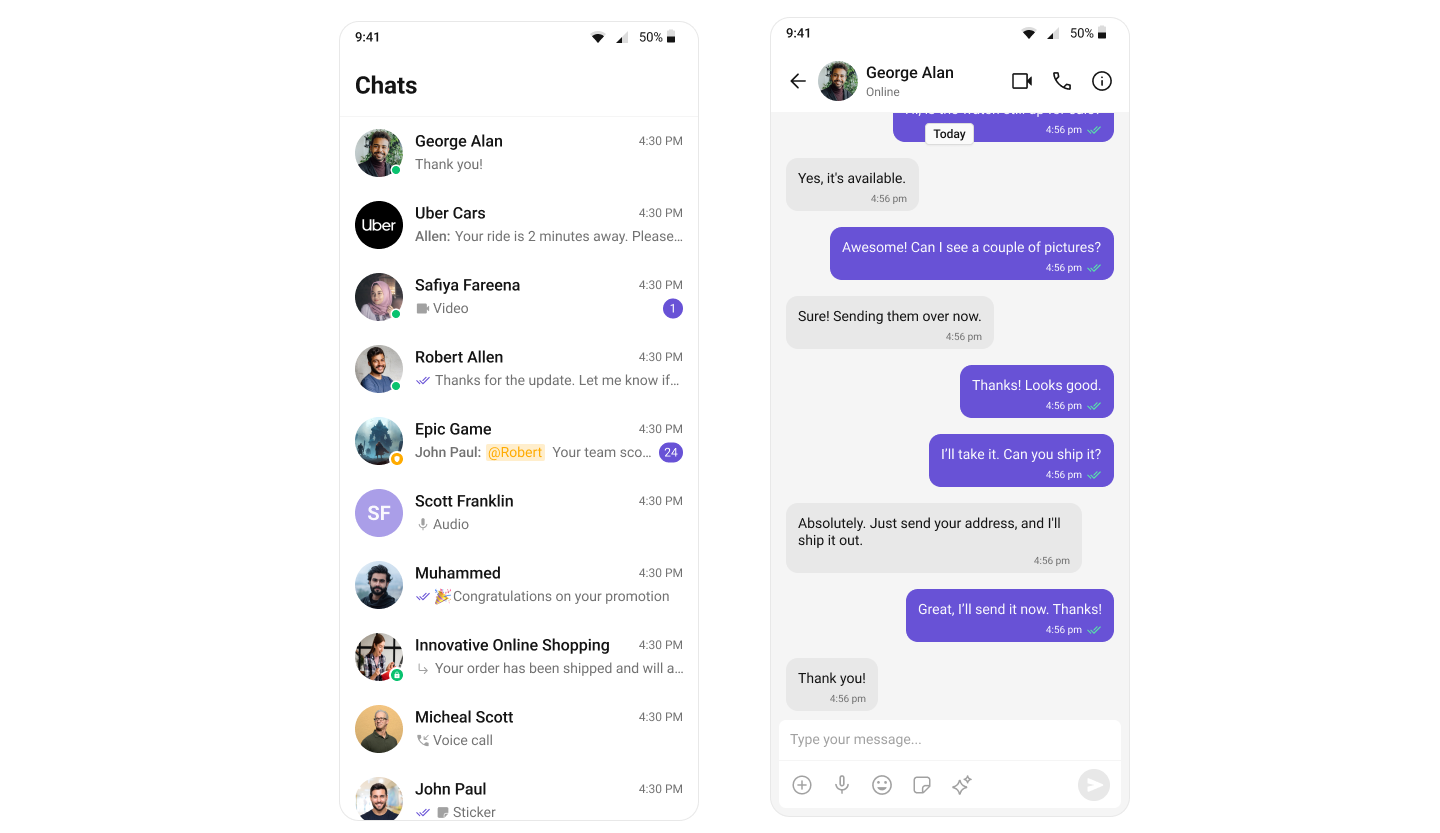
Basic Customization
Changing Primary Color
The primary color is used throughout the UI for buttons, highlights, and interactive elements:themes.xml
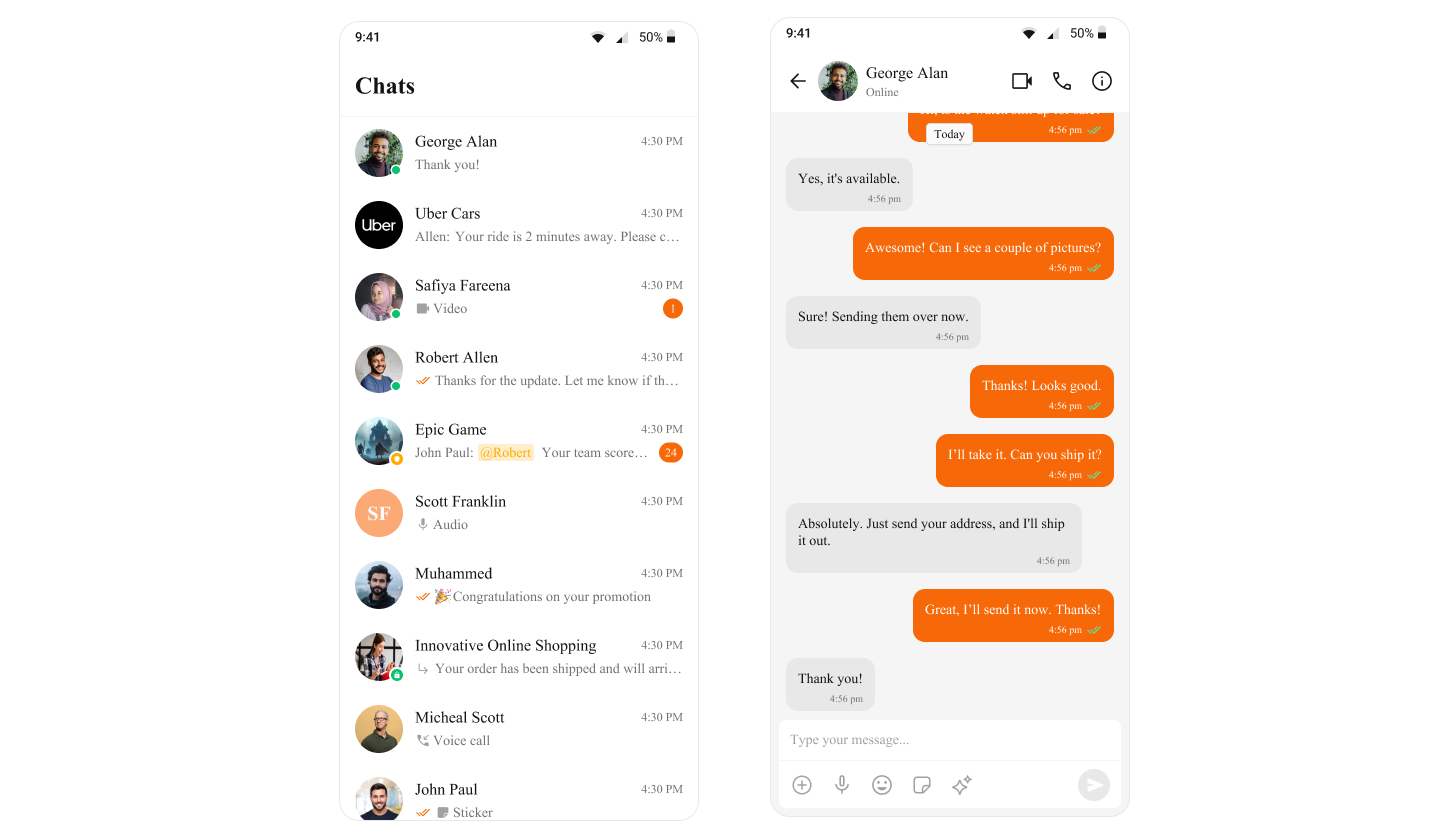
Common Theme Attributes
Here are some commonly customized theme attributes:themes.xml
Light and Dark Mode
CometChatTheme.DayNight automatically supports both light and dark modes based on the system setting. To customize colors for each mode:
Create themes-night.xml
Create avalues-night folder and add themes.xml:
values-night/themes.xml
For a complete list of theme attributes, visit the theme attributes file on GitHub.